
The window
Saga-Scribe’s window is divided into three parts.
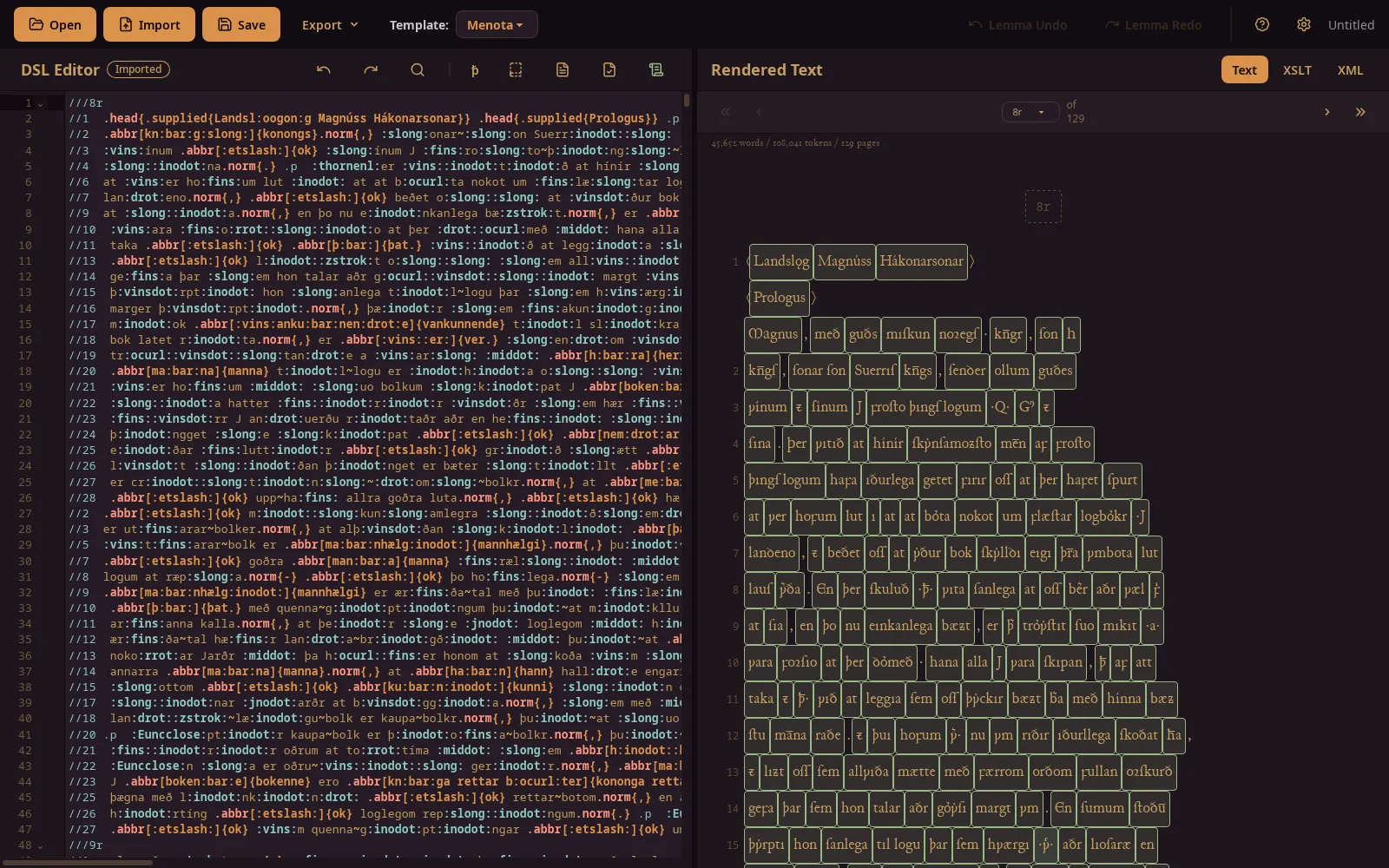
Toolbar
Section titled “Toolbar”At the top:
- Open (Ctrl+O) opens a project or a shorthand file.
- Import reads a TEI-XML or plain-text file and replaces the current document.
- Save (Ctrl+S) saves the project.
- Export opens a menu with TEI-XML, HTML, PDF and Dictionary JSON.
- The template menu chooses the template used by the document.
- Undo and redo for lemmatization (separate from the editor’s history).
- Help (F1) opens the help dialog with shortcuts and the shorthand.
- Settings opens the settings dialog.
Editor
Section titled “Editor”On the left is the transcription, written in the shorthand. Its header has buttons for:
- undo and redo of editor changes;
- search and replace;
- the entity browser (ꝥ);
- the template manager;
- the manuscript metadata editor;
- XML validation;
- the application log.
Line and page markers are folded in the editor’s margin: pages can be collapsed at their page breaks, which keeps long manuscripts manageable. See Keyboard shortcuts.
Preview
Section titled “Preview”On the right is the compiled document. Three views are available:
- Text — the reading text, with clickable words.
- XSLT — the document transformed by your stylesheet.
- XML — the compiled TEI.
See Preview for the details.
A typical session
Section titled “A typical session”- Choose a template in the toolbar.
- Transcribe in the editor. The preview updates after each pause in typing.
- Click words in the preview to lemmatize or annotate them.
- Save the project (Ctrl+S).
- Validate, then export TEI-XML, HTML or PDF.