
Lemmatization
Lemmatization attaches a dictionary headword and a morphological analysis to a word. It requires a template with word wrapping.
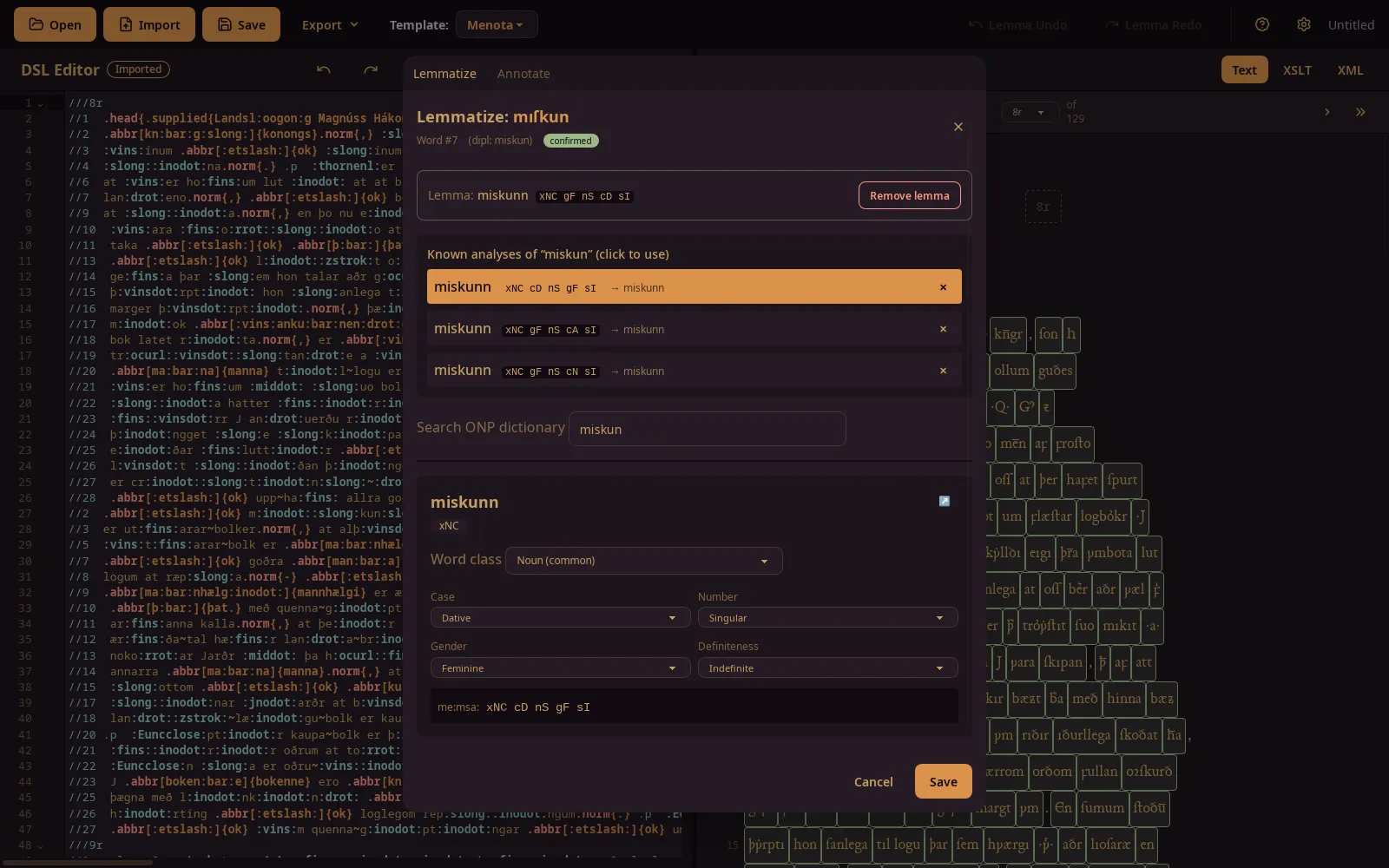
Opening a word
Section titled “Opening a word”Click a word in the Text or XSLT preview. The word panel opens on its Lemmatize tab. The panel opens on the word’s current lemma, ready to change.
Known analyses
Section titled “Known analyses”Known analyses lists analyses of the same word form from earlier work. Click one to apply it to this word.
- The ✕ next to an analysis removes it from the list of known analyses for all words. It does not remove lemmas already given to words.
- Analyses are compared regardless of the order of their codes:
xNC gM nSandgM xNC nSare the same analysis.
ONP dictionary
Section titled “ONP dictionary”Search ONP dictionary searches the Dictionary of Old Norse Prose by headword and lets you choose an entry. The link next to an entry opens it on the ONP website.
If ONP cannot be reached — because you are offline, or the service is down — the panel says so instead of waiting indefinitely. The analysis can still be entered by hand.
Word class and morphology
Section titled “Word class and morphology”Choose the word’s class and the morphological categories that apply to it. The codes are
MENOTA’s me:msa codes:
- case, number, gender, definiteness;
- grade;
- person, tense, mood, voice;
- finiteness.
The categories shown depend on the word class. The complete list, with examples, is in the Morphological analysis codes reference.
Normalized form
Section titled “Normalized form”On multi-level transcriptions, the Normalized form field sets the word’s me:norm
value. It starts from the word’s current form and can be saved with or without a lemma.
- Saving a normalized form without a lemma is allowed; for example, when you want to normalize spelling before deciding on the headword.
- Remove lemma removes the lemma and analysis but keeps a normalized form entered by hand.
See MENOTA levels for how the three forms relate.
Saving and removing
Section titled “Saving and removing”Save confirms the lemma and analysis for this occurrence of the word.
Remove lemma removes them again. A normalized form entered by hand is kept.
Marks in the text
Section titled “Marks in the text”In the Text view:
- words with a confirmed lemma are marked;
- words whose form has a known analysis that has not been confirmed for this occurrence are marked more faintly;
- hovering over a word shows its lemma and analysis.
Undo and redo
Section titled “Undo and redo”Lemmatization has its own undo and redo — in the toolbar, or with Ctrl+Shift+Z and Ctrl+Shift+Y — separate from the editor’s history. An editor undo does not undo a lemma, and a lemma undo does not change the text.
How lemmas follow their words
Section titled “How lemmas follow their words”Lemmas are stored by word, and follow their words when text is inserted or deleted before them.
If a word is edited slightly — for example to correct a typo, changing at most half its letters — it keeps its lemma, analysis and normalized form. A different word typed in its place does not: it is a new word, written in the same place.
In an imported file, a word edited in this way is underlined in the previews and flagged edited in the word panel until the document is re-imported, as a reminder to check the analysis against the changed spelling.